SkalaManage

Sign-in and a tool catalogue in SketchUp, Skala Base with Norwegian terrain (Kartverket) and NVDB, Skala Move for DWG, DXF and SOSI, and an AI assistant in Properties.
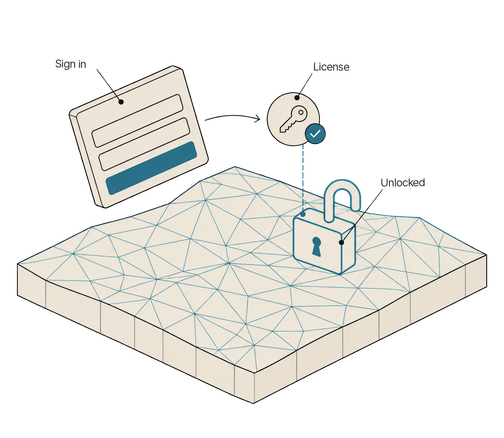
Sign-in in Skala Manage: a Skala account with Microsoft or a one-time code.
01

Sign-in

What you get:
  • Sign in with a Skala account.
  • With Microsoft or with a one-time code by email.
  • The one-time code is six digits, sent to your work email.
02

Products

What you get:
  • Install, update and remove tool collections from SketchUp.
  • Status is shown per product: installed, update or ready.
  • The same account as sign-in.
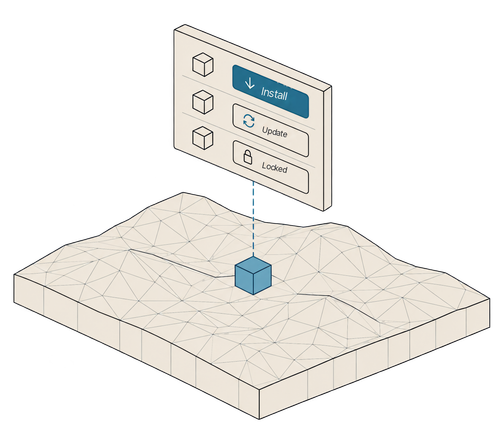
Tool catalogue in Skala Manage: install, update and remove tool collections.
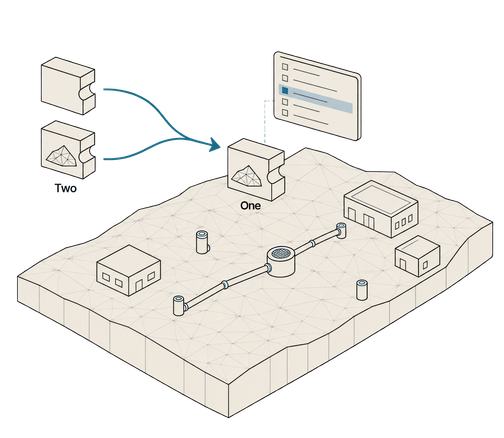
Illustration of two separate extensions merging into a single install, as Skala Base now ships inside Skala Manage for SketchUp.
03

Skala Base included

What you get:
  • Skala Base is now part of Skala Manage, under "Skala BIM → Skala Base".
  • One install instead of two.
  • Norwegian terrain from Kartverket and NVDB data in the same extension.
04

Skala Start

What you get:
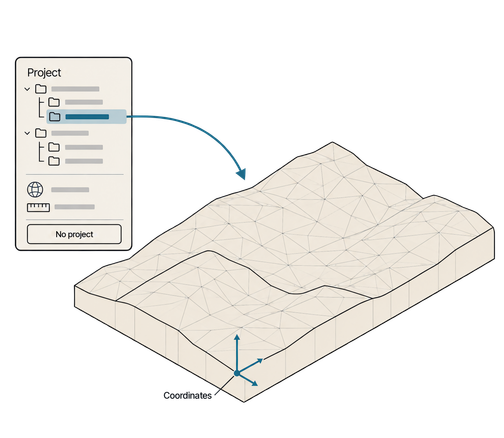
  • A Windows project window that opens before SketchUp. This is where you pick or create projects and sub-projects.
  • Coordinate system and unit (m, cm or mm) are set per project and shared by all sub-projects.
  • "Start without project" opens a new model from the Skala template.
  • Deleted projects go to the Recycle Bin.
Illustration of the Skala Start project window, where you pick a project with its coordinate system and unit before SketchUp opens, or start without a project.
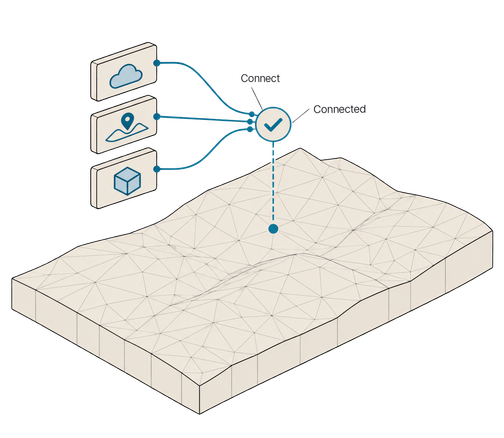
Integrations in Skala Manage: Xsite, Makin and Trimble Connect.
05

Integrations

What you get:
  • Connect Xsite, Makin and Trimble Connect.
  • Each account is connected on its own.
  • Status is shown as connected or not connected.
06

Skala Move

What you get:
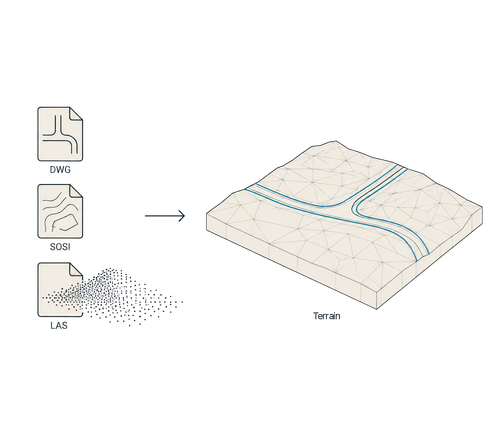
  • Import and export of DWG, DXF, SOSI, KOF and KML.
  • Novapoint road models (.dmr and .dmi) and cross-sections (.sfi).
  • .laz and .las become a terrain surface.
  • Skala Move is now part of Skala Manage.
Release notes
Skala Manage – Move in SketchUp: import and export of DWG, DXF, SOSI, KOF and KML.
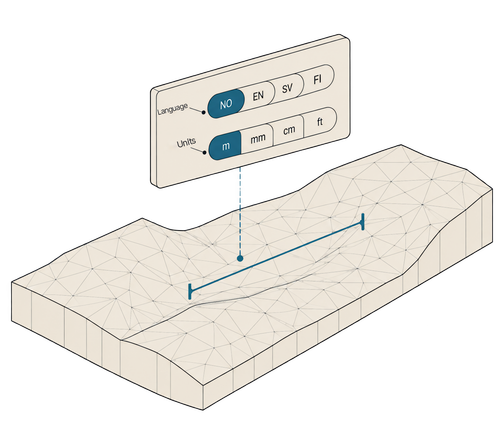
Settings in Skala Manage: language, units and license.
07

Settings

What you get:
  • Language, units and license for the signed-in account.
  • Coordinate system and unit are set per project in Skala Start.
  • Sign out from here.
08

Map

What you get:
  • A map with terrain, manholes, pipes, culverts and cable pits.
  • Manholes, pipes, culverts and cable pits come from NVDB without an account.
  • The layers are switched on and off in the map.
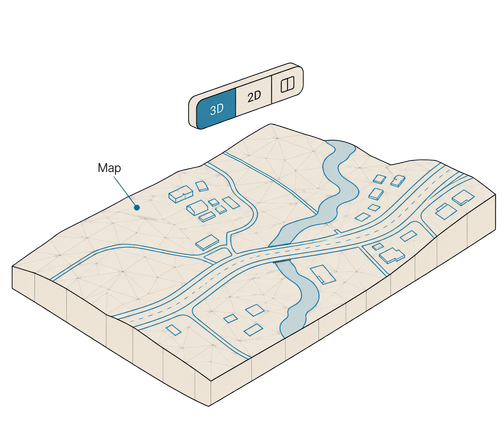
Map in Skala Manage: terrain and NVDB layers for manholes, pipes, culverts and cable pits.
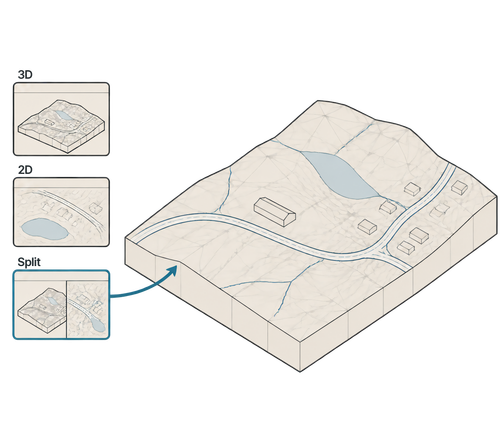
Illustration of a live background map under a SketchUp model, with a choice of 3D, 2D and split view in Skala map view.
09

Background map

What you get:
  • A background map under the model.
  • 3D, 2D and split view.
  • The detailed Finnish MML map requires SketchUp 2023 or newer.
10

Terrain

What you get:
  • Norwegian terrain from Kartverket.
  • A terrain model, contours and elevations.
  • The same base as in Skala Base.
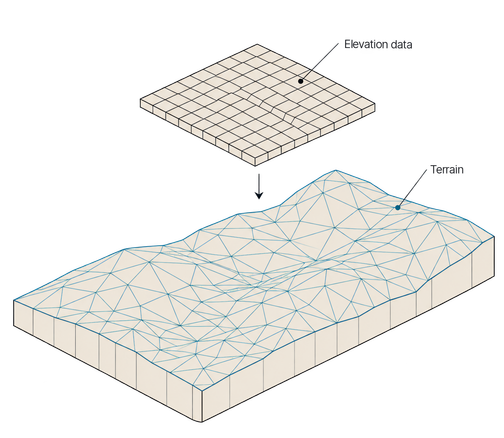
Terrain in Skala Manage: Norwegian terrain from Kartverket, with contours and elevations.
Coordinates in Skala Manage: north, east and height for a point.
11

Coordinates

What you get:
  • Coordinates for a point in the model.
  • North, east and height in the chosen coordinate system.
  • The systems are listed.
12

Points

What you get:
  • Toolspace lists points.
  • Name and position for each point.
  • The points sit with the objects and the pipe networks.
Points in Skala Manage: Toolspace lists name and position.
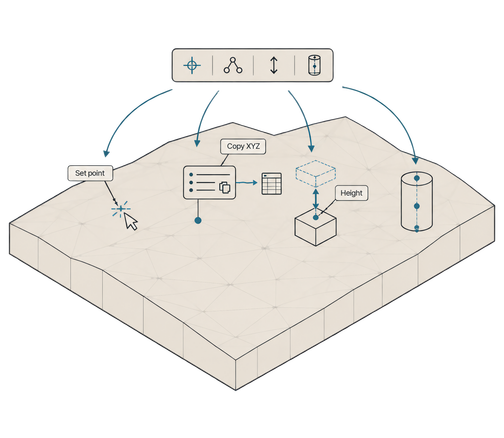
Illustration of the Skala Manage point tools: set a point, get and copy XYZ coordinates, set an object’s height and place centre points.
13

Point tools

What you get:
  • "Set point" and "Set point height".
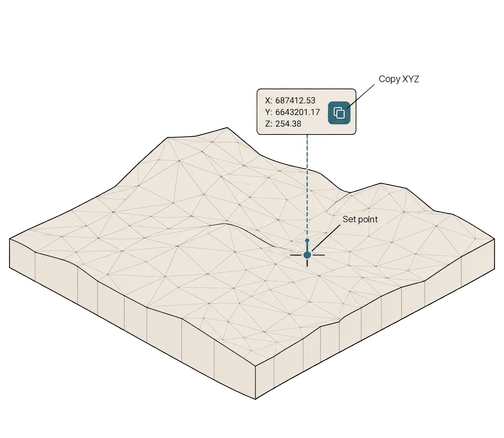
  • "Get coordinates" with "Copy XYZ".
  • "Set centre points" places helper points at the centre, top and bottom of the selection.
14

Extract lines from surface

What you get:
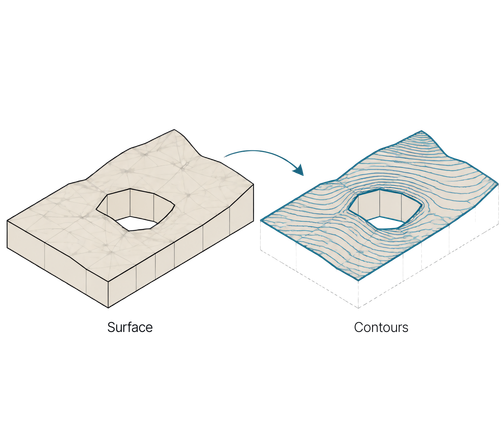
  • Creates borders and contours from a surface.
  • The lines become 3D curves in the model.
  • Sits with the point tools.
Illustration of a triangulated terrain surface turned into 3D border, hole and contour lines with Extract lines from surface.
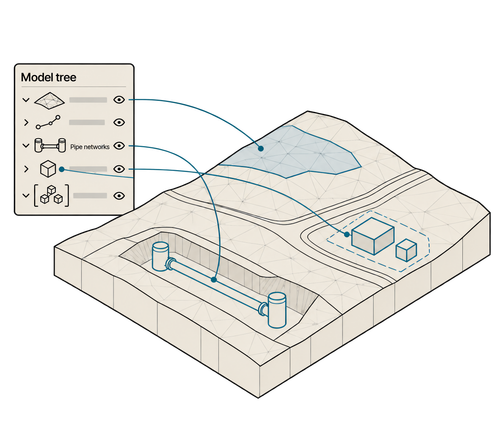
Illustration of the Skala Manage Toolspace model tree organising surfaces, lines, pipe networks, components and groups in a SketchUp terrain model.
15

Toolspace

What you get:
  • Points, surfaces, alignments, pipe networks, components and groups in their own panel.
  • Show/hide and zoom to the object.
  • Shown in sessions started from Skala Start.
16

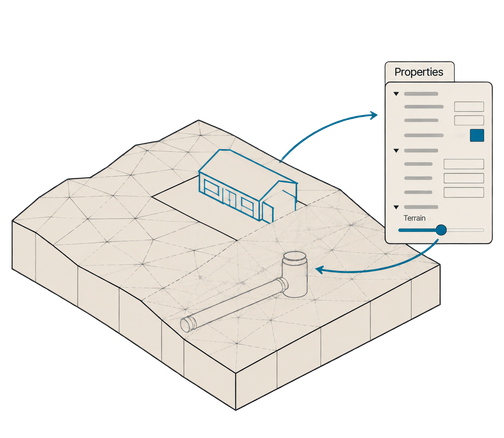
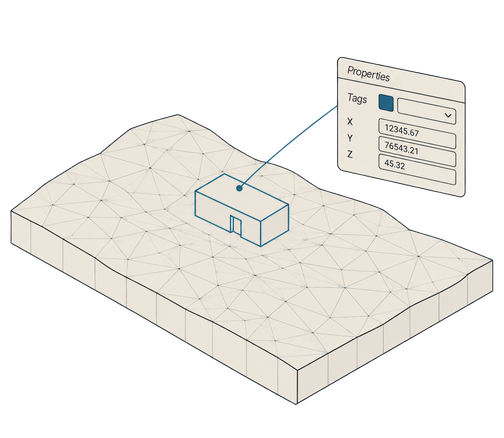
Properties panel

What you get:
  • Modelled on the AutoCAD and Civil 3D properties palette.
  • Edit name, tag, material and point coordinates.
  • A slider sets terrain visibility from 0 to 100 %.
Illustration of the CAD-style Properties panel with name, tag, material and coordinates, and a slider that makes the terrain transparent to reveal buried pipes.
Properties in Skala Manage: Skala AI reads, searches and calculates quantities.
17

Properties

What you get:
  • The Skala AI chat reads, searches and calculates quantities in the model.
  • Toolspace lists objects, pipe networks and points.
  • The chat sits in Properties.
18

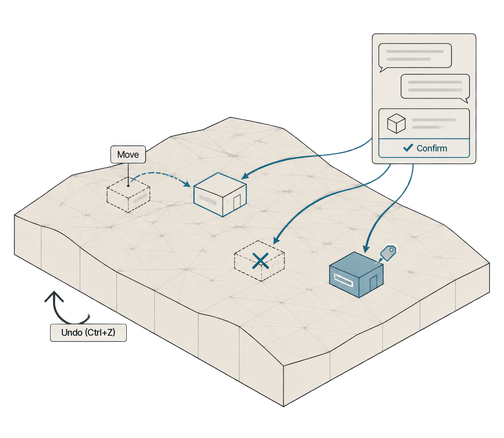
AI actions with Undo

What you get:
  • Skala AI can move, delete, hide/show and set properties on whole objects.
  • Nothing changes until you confirm.
  • Every change can be reverted with Undo.
Illustration of Skala AI moving, deleting and changing properties of model objects only after you confirm, with the option to undo.

Want to try it?

support@skalastudios.no